

Creating an OAuth2 Application
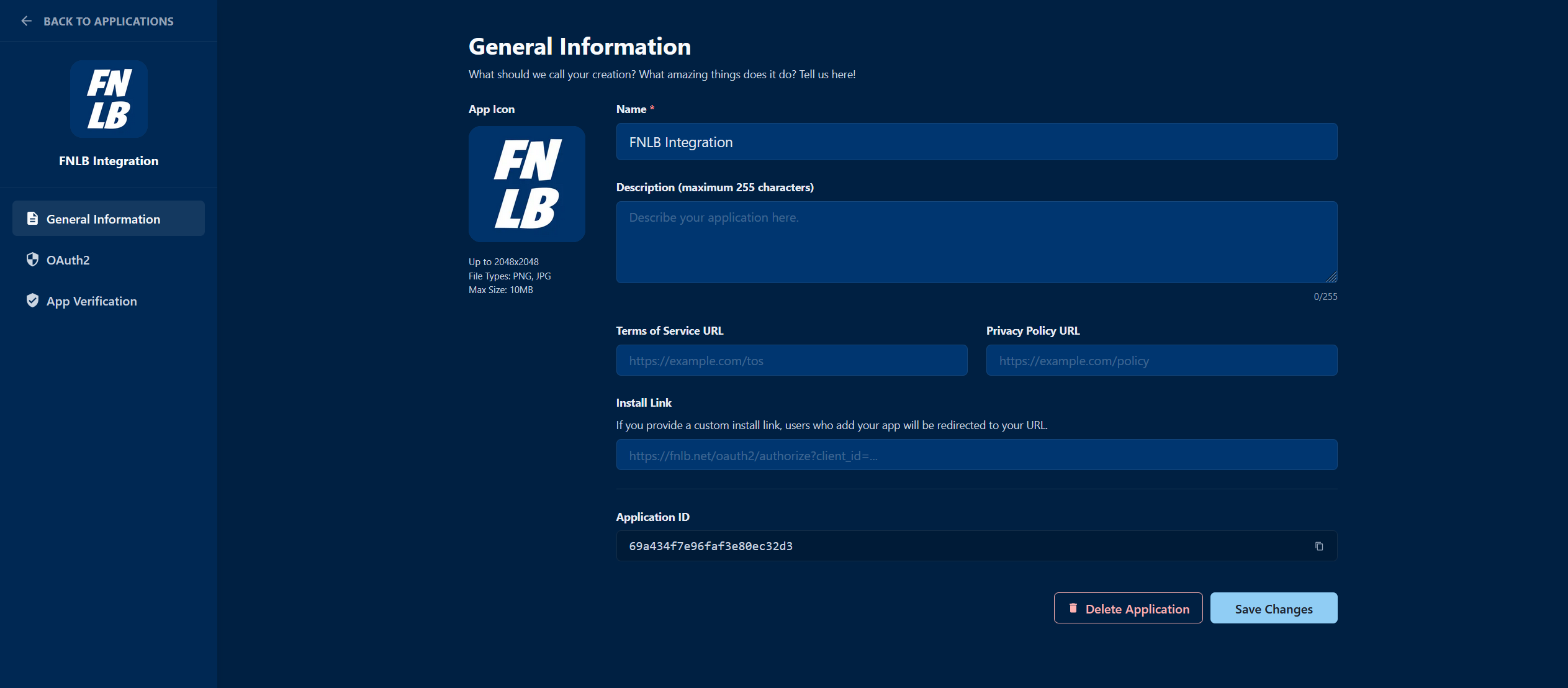
- Go to the Developer Portal
- Click on “Create Application”
- Fill in the name
- Click on “Create”
- Copy the Client ID and Client Secret
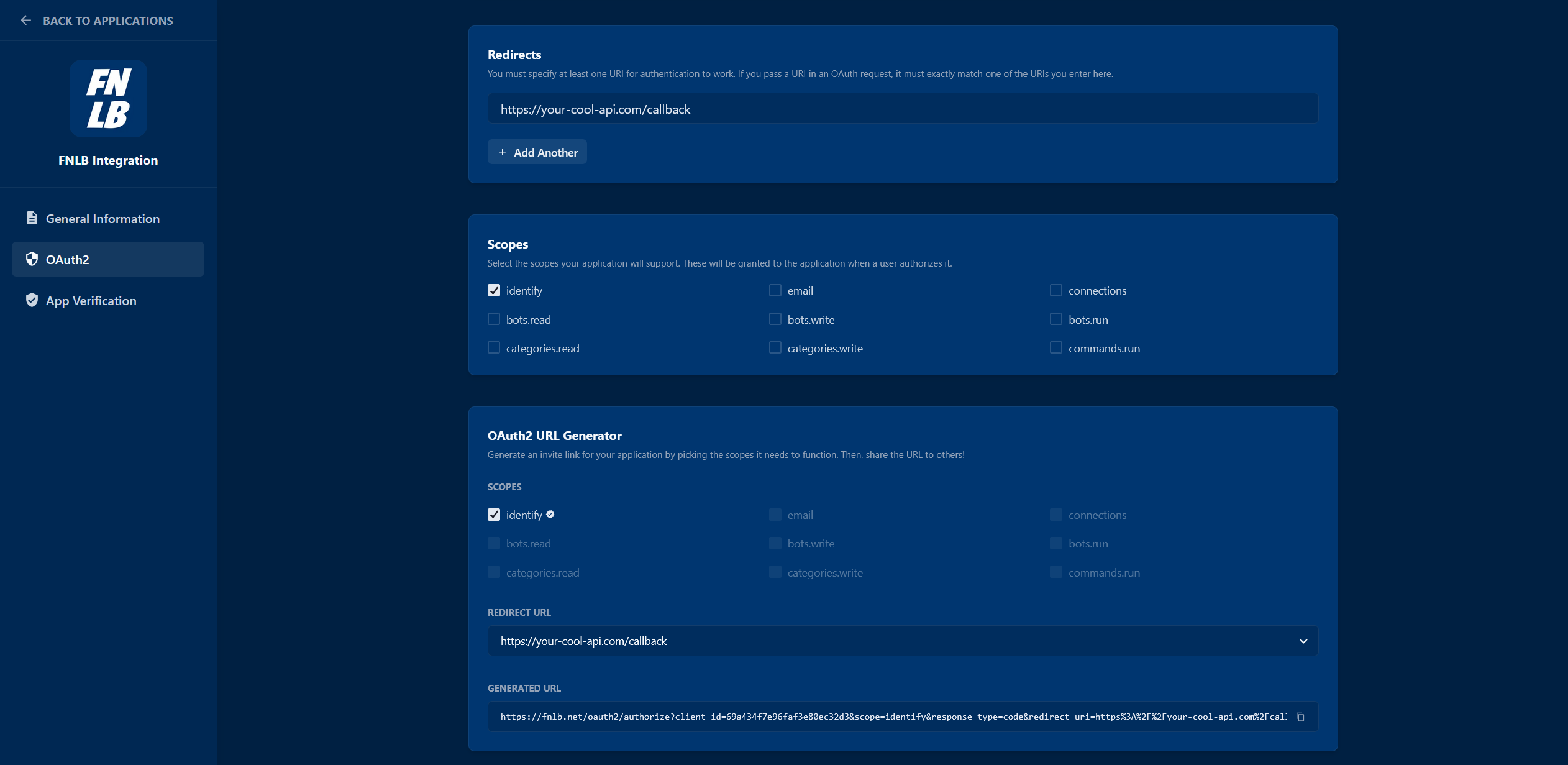
- Go to OAuth2 and add your Redirect URIs
The OAuth2 Flow
FNLB supports the Authorization Code Grant flow, which is the most secure way for server-side applications to authenticate.1. Authorization Request
Redirect the user to the FNLB authorization endpoint. You can generate one using the FNLB OAuth2 URL Generator.2. User Approval
The user will be prompted to log in (if not already) and authorize your application. Upon approval, they will be redirected back to yourredirect_uri with a code parameter.
3. Token Exchange
Exchange the authorization code for an access token by making a POST request to:4. Accessing Resources
Use the returnedaccess_token in the Authorization header of your API requests. The Bearer prefix is optional:
Scopes
Scopes define the level of access your application has.Next Steps
API Reference
Learn how to use the FNLB API.